Printing Pages
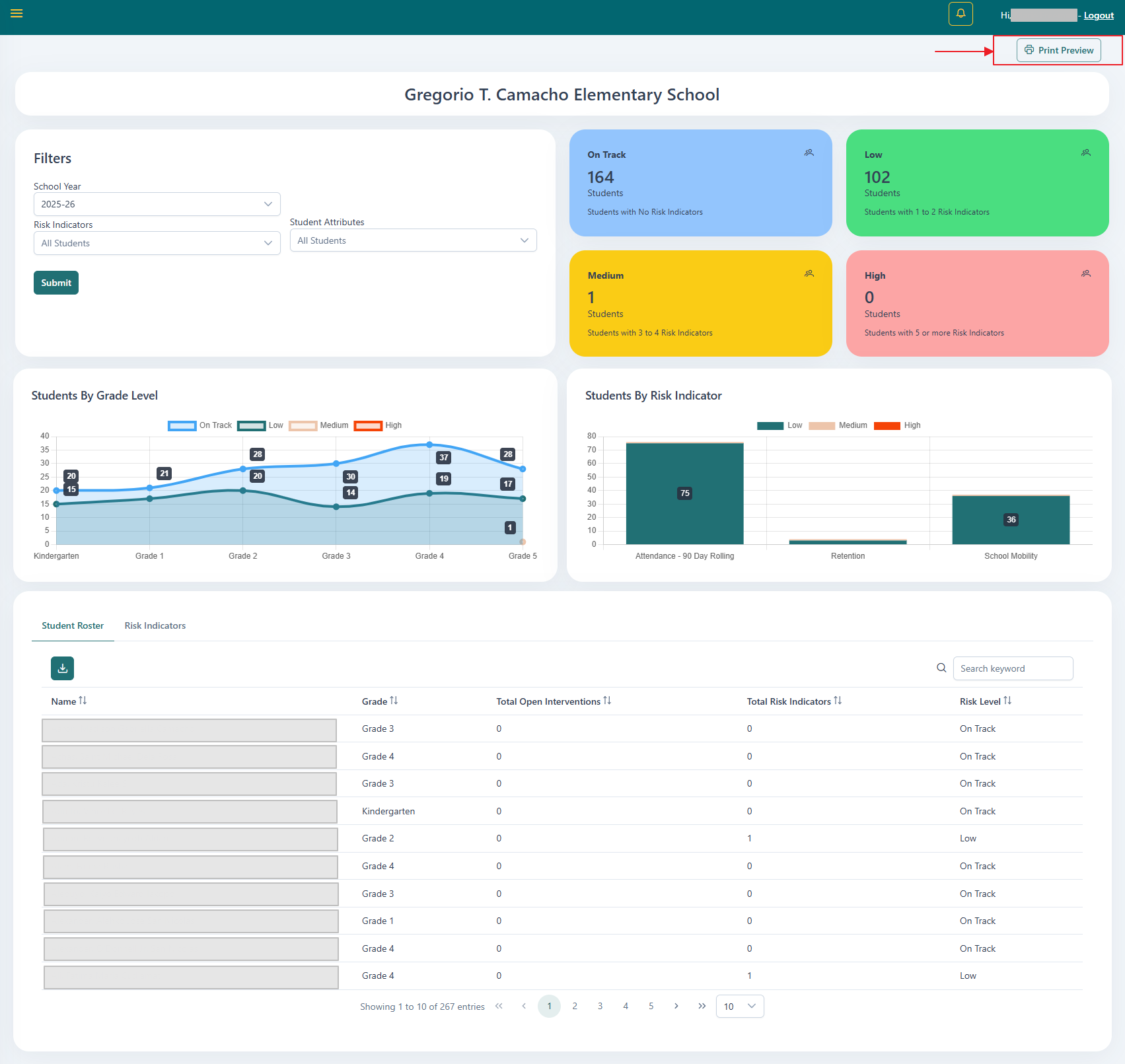
A print friendly version of certain pages is available throughout the portal. Pages that are able to be printed will have the Print Preview button Print Preview at the top right of the page below the top bar.
Print Preview
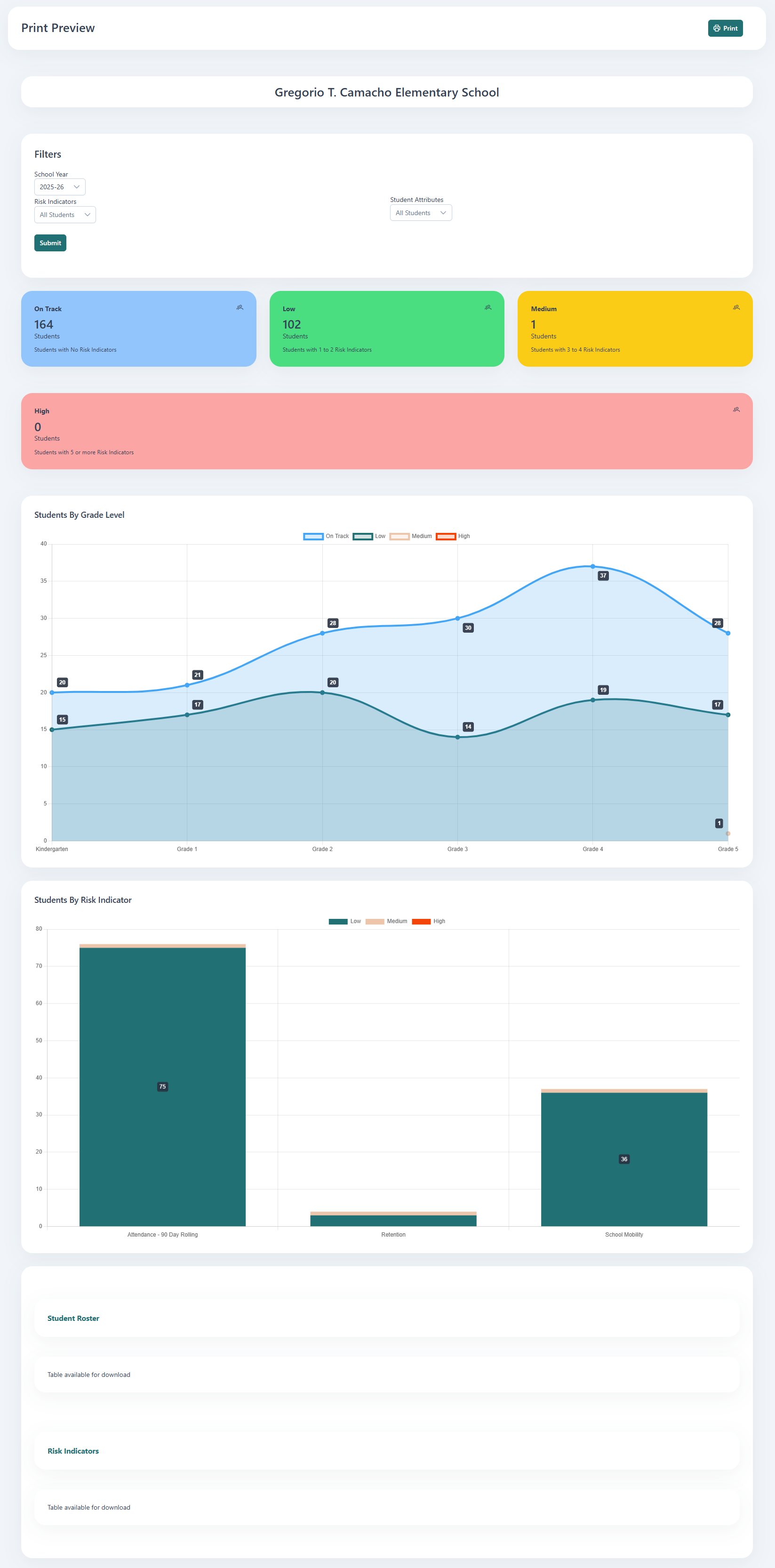
Upon clicking the button, the Print Preview of the page will be shown in a new tab. The contents of the page are reformatted to be more visible. Click the Print button Print to bring up your browsers native print options and print the page.
Be aware that visuals will often appear larger in order to be legible on the printed media. The size of the content on screen will not be the actual size when printed. The scale will be proportional to the printed media size.
Tables
Tables will print to be the full width of the page. If the table data is downloadable , the table will not show when printed. Instead, a placeholder will show indicating that the table should be downloaded in place of printing it.
Tabs
Tab views will be printed in the order they appear. Each tab heading will show in blue followed by the tab content.
Example
Here is an example of the School Dashboard page in comparison to the Print Preview.
Sample Page
Sample Print Preview
Sample PDF
Below is and example of saving to a PDF on letter size paper.