Student Dashboard
The Student Dashboard will show an in-depth look at an individual student profile. This dashboard is available to District, School, and Teacher roles. The Student Dashboard displays data for Student Information, Risk Level, Student Assessments, Early Warning Flags, and Interventions for the selected school year in the School Year filter. The Student Dashboard contains additional student information in two tabs: Overview and Intervention Management
Student Information
Student Information is viewed by a School Year filter. This section details the following information: student name, school attended during the selected school year, grade level, age at the start of the school year, any student attributes for that year, and their risk level.

Additional Student Information
Additional Student Information can be viewed by clicking the More Info button. This includes: prior CNMI PSS schools attended, the age they were first entered into the public school system, local ethnicity, and primary language. The information can be hidden by clicking the button again. Notice that when information is shown the button changes to Less Info.

Overview
Month Over Month EWS Count
This card will compare the total number of Risk Indicators the student has from the previous month to the current month. If the count stayed the same, then the icon indicator will be marked with . An increase is indicated with , and a decrease is indicated with .

Total Absences
This card displays the count of absences the student has accumulated during the school year.

Attendance Rate
This card displays the rate of attendance for the school year as a percentage.

Risk Indicators
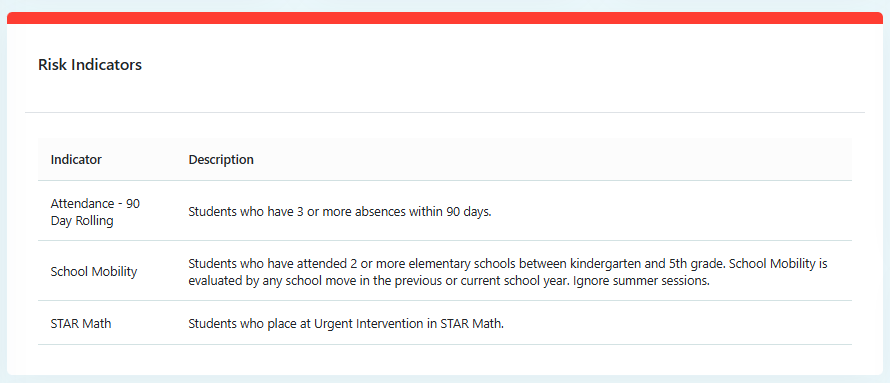
The Risk Indicators table displays each Indicator and business rule description a student has triggered.
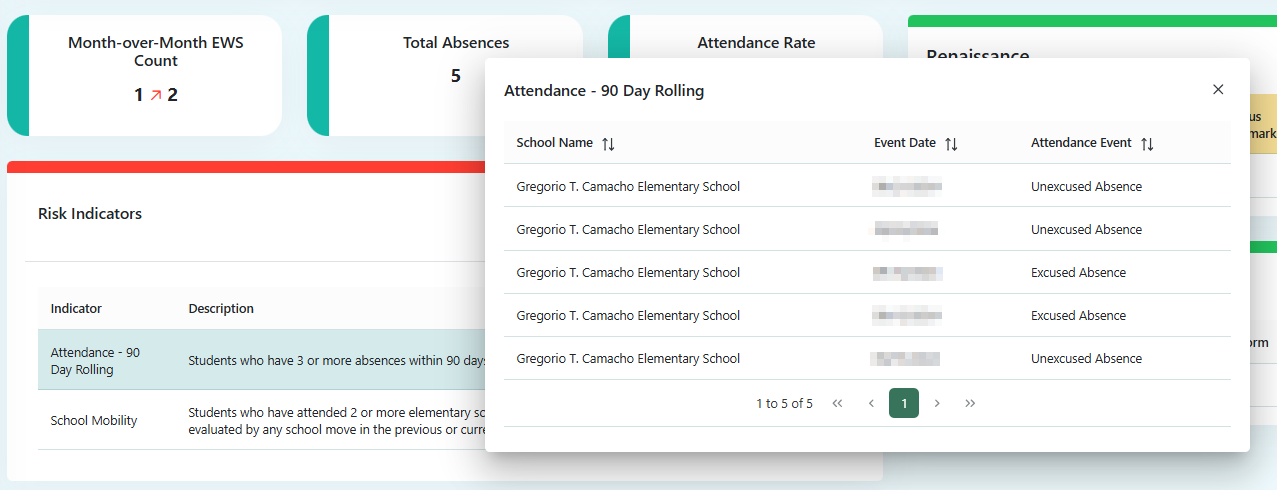
An Indicator may be selected to display the associated events documented for the student. Sorting is available by clicking the arrows next to the column names, as well as the option to navigate through the pages of events.
Course Performance Widget
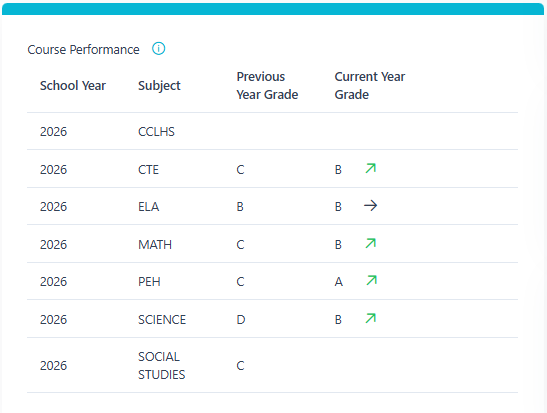
The Course Performance Widget displays a side-by-side comparison of a student’s course performance between the previous and current school year. Using the School Year dropdown, data can be viewed for up to the past 5 years.
Course Performance data is available from the 23-24 school year and forward.
The following table shows the courses that will display for students within each school type.
| Schools | Courses |
|---|---|
| Elementary Schools | CCLHS, CHAR ED, CTE, ELA, MATH, PEH, SCIENCE, SOCIAL STUDIES |
| Jr High / Middle Schools | CTE, ELA, MATH, PEH, SCIENCE, SOCIAL STUDIES |
| High Schools | CCLHS, CTE, ELA, MATH, PEH, SCIENCE, SOCIAL STUDIES |
Assessments
Assessments available to be viewed on the student dashboard include Renaissance, MSAA, and WIDA.
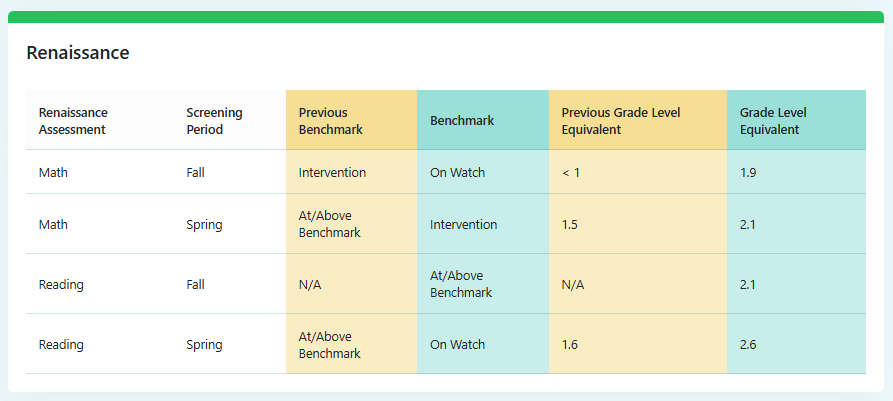
Renaissance Assessment
This section displays the Renaissance Assessments taken, previous and respective Benchmark Levels, and the grade level equivalent. The Benchmark Levels are documented as Urgent Intervention, Intervention, On Watch, or At/Above Benchmark.
MSAA Assessment
The Multi-State Alternate Assessment (MSAA) is a comprehensive assessment system designed to promote increasing higher academic outcomes for students with significant cognitive disabilities in preparation for a broader array of post-secondary outcomes. The following shows the grade levels tested per subject:
| Subject | Grade Levels Tested |
|---|---|
| Math | 3-8 and High School |
| ELA | 3-8 and High School |
| Science | 5, 8, and High School |

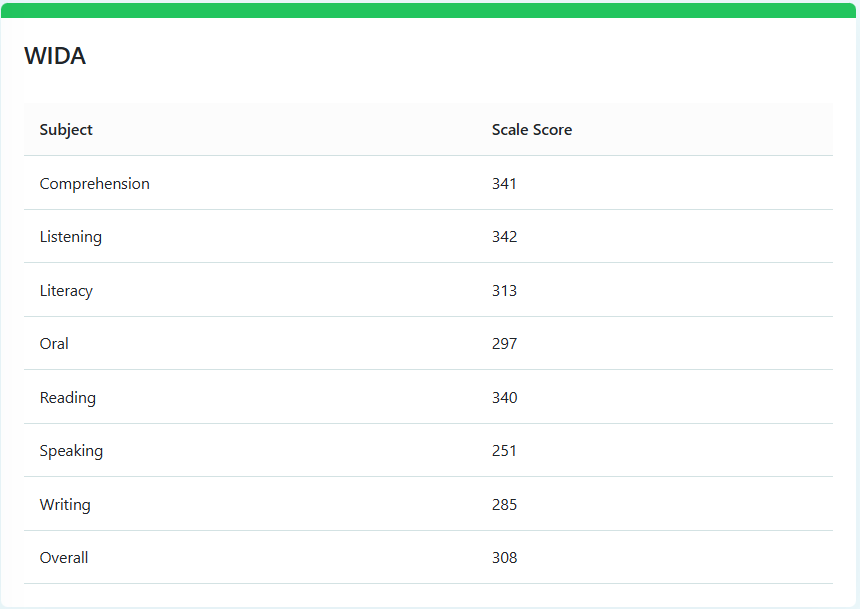
WIDA Assessment
The Northern Mariana Islands uses WIDA Screener for Kindergarten and WIDA Screener (Grades 1-12) to identify English language learners (ELLs). ACCESS for ELLs is given to all ELLs during the annual testing window, which typically lasts from mid-February through mid-March.
Intervention Management
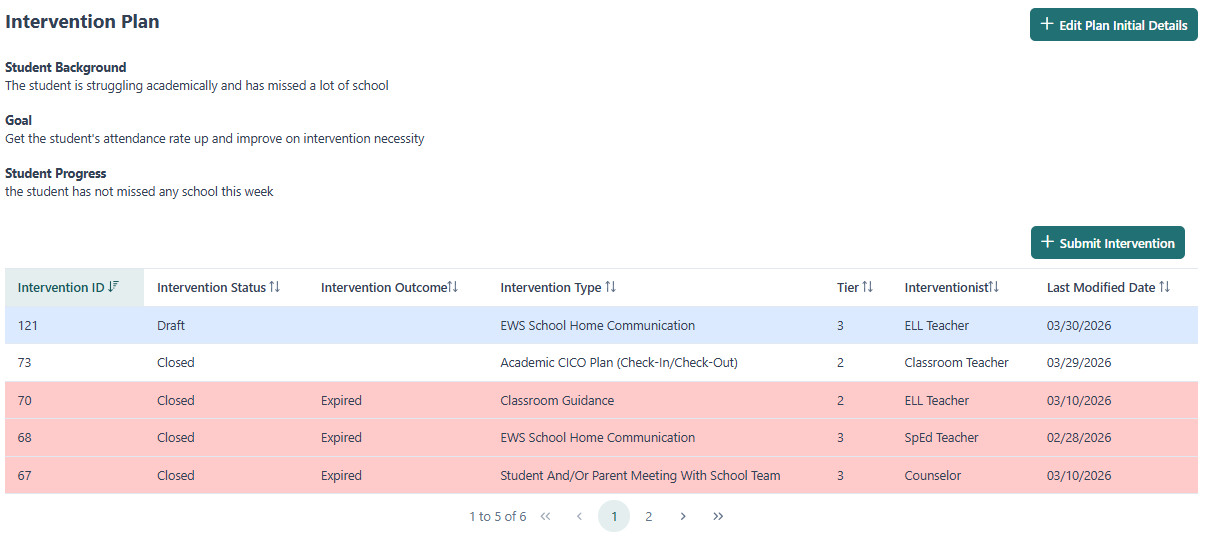
This tab will detail all of the students interventions. A user will be able to create, edit, and view the current students interventions from this tab if their role has the available permissions.
Intervention Status Cards
At the top of the Student Intervention Management view, 4 summary cards display the total number of interventions by status: Draft, New and Active, Closed, and Closed – Outcome Needed. An intervention is marked as Closed - Outcome Needed if the end date for the intervention has passed, but it has not been closed with an outcome.

Intervention Plan Table
This table details all interventions in all statuses. The table may be sorted by clicking the headers. Interventions that are past the end date without an intervention outcome applied will be marked in red. By clicking on the intervention record, the intervention details will be opened.
For additional information on Intervention Plans go to Interventions section
If you are viewing the intervention with a District Role, you will only have read-only access to a student's intervention details.